Robot Controller with Vision System Example Design for Agilex™ 5 Devices
Overview
This example design demonstrates a combined robotics vision and motion-control architecture on the Agilex™ 5 FPGA E-Series 065B Modular Development Kit. The platform integrates a 6-axis Drive-on-Chip control stack with a robotics video pipeline while higher-level robotics software stack runs on the Hard Processor System (HPS):
- 6-axis field-oriented control (FOC) in FPGA fabric using a 3x2 Drive-on-Chip topology (three dual-axis control slices) with simulated motors.
- Robotics vision ISP pipeline with optional MIPI sensor input, ISP Lite conditioning, and DisplayPort output.
- ArUco marker injection and mixing in the video path to emulate visual feedback and target-tracking workflows used in manipulation applications.
- HPS Linux software stack for system orchestration, motion/vision coordination.
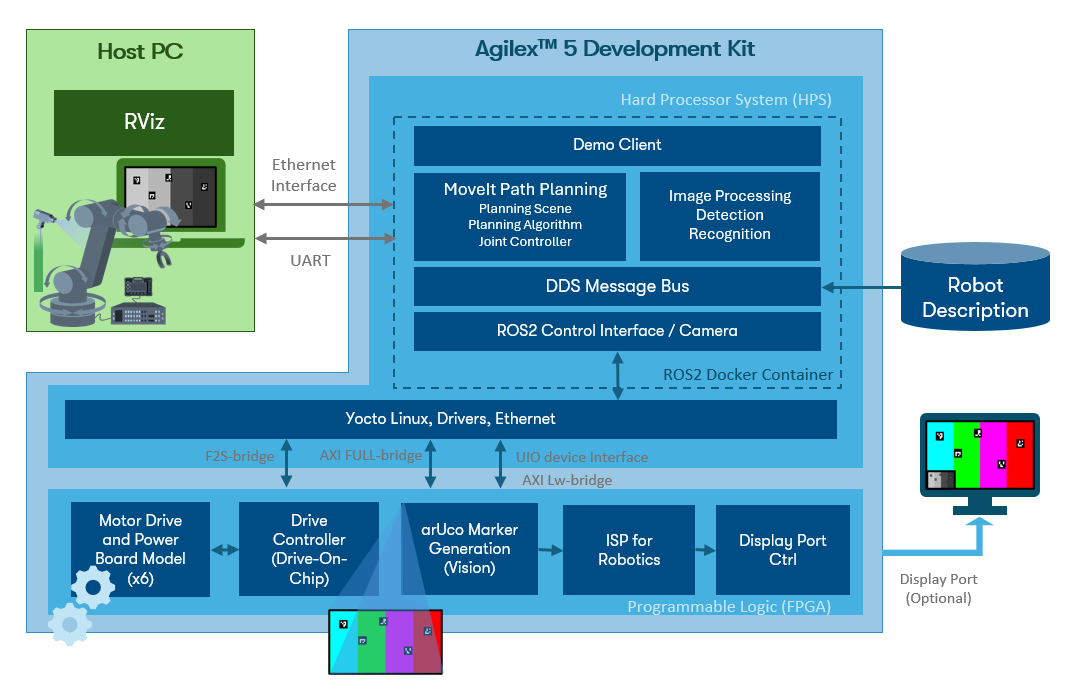
High-Level Block Diagram of the Robot Controller with Vision System Example Design.
The diagram shows a tightly coupled architecture where the upper section implements the robotics vision pipeline and the lower section implements the 6-axis Drive-on-Chip control system. On the vision side, the default path uses ISP In test patterns (MIPI ingest is optional); video passes through ISP Lite conditioning, then flows into the ISP Robotics path where clipping, scaling, grayscale conversion, frame buffering, and ArUco mixing are applied before final composition and DisplayPort output in the ISP Lite Out subsystem. In parallel, the motion side uses D-NiosV, Drive, MotorModel, and Control subsystems to close real-time FOC loops for six axes. Both domains share DDR resources through EMIF subsystems, while the HPS subsystem and Nios® V pipeline controller provide register programming, data movement, and software orchestration so vision feedback and motor-control execution remain synchronized in a single FPGA+HPS platform.
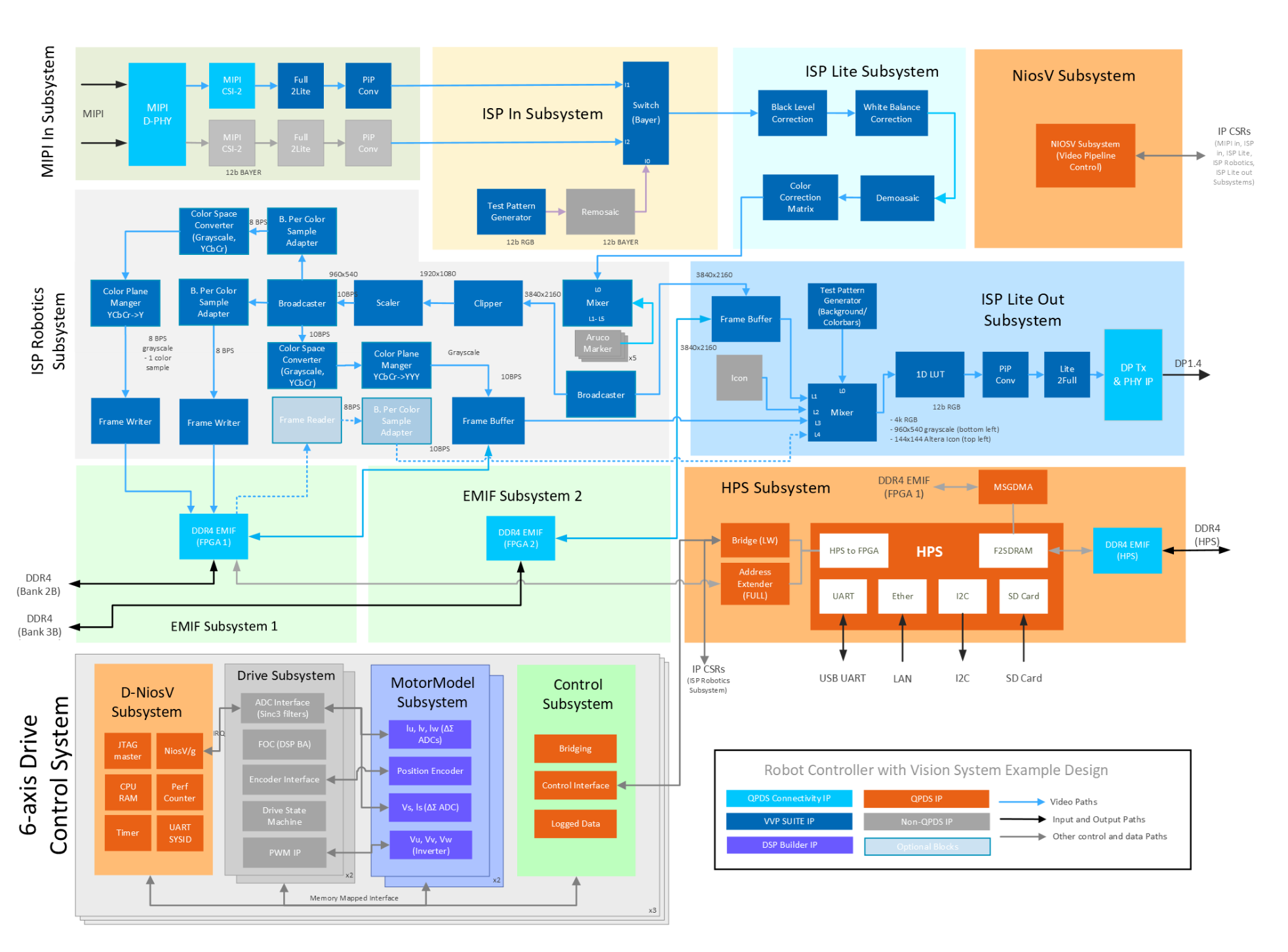
High-Level Hardware Block Diagram of the Robot Controller with Vision System Example Design.
Blue interconnect in the diagram is the live video path (ISP In → ISP Lite → ISP Robotics → ISP Lite Out → DisplayPort). MIPI In is optional. Gray paths are control and memory access from the Nios® V and HPS subsystems.
Subsystem names and grouping match the Modular Design Toolkit (MDT) view and the variant XML (AGX_5E_Modular_Devkit_HPS_ISP_VIS_DOC3x2_ROB.xml).
The hardware variant AGX_5E_Modular_Devkit_HPS_ISP_VIS_DOC3x2_ROB.xml is built with the Modular Design Toolkit from the https://github.com/altera-fpga/agilex-ed-robotics repository. See HPS_ISP_VIS_DOC3x2_ROBOTICS for MDT create and build instructions.
Pre-requisites
The following are required to be able to fully exercise the Agilex™ 5 Modular Development Kit.
Software Runtime Requirements
- Host PC with
- 4 GB of RAM
- Linux OS installed
- Serial terminal (for example GtkTerm or Minicom on Linux and TeraTerm or PuTTY on Windows)
- Tool to write SD card images (USBImager or similar)
- Altera® Quartus® Prime Pro Edition Version 26.1 Programmer and Tools
- Docker
- Rocker (recommended to run RViz in a container on a host PC with X11 forwarding)
Software Build Requirements
- 8 GB of RAM
- Linux OS installed
- ~62 GB free storage (~2 GB Quartus® build, ~60 GB Yocto/KAS)
- Python/PIP/KAS for Yocto (or a suitable container)
- Altera® Quartus® Prime Pro Edition Version 26.1 with Agilex™ 5 device support
- FPGA NiosV/g Open-Source Tools 26.1 (installed with Quartus® Prime)
- DSP Builder for Altera® FPGAs Pro Edition v26.1 (optional)
Hardware Requirements
- Agilex™ 5 FPGA E-Series 065B Modular Development Kit (ordering code MK-A5E065BB32AEA)
- Power supply
- 1 x Micro USB cable (JTAG and HPS serial console)
- 2 × Ethernet cables (one for the board, one for the host PC). An Ethernet router or switch may be needed for a local network
- Micro SD card and USB card writer (minimum 8 GB)
- DisplayPort cable, or HDMI cable with DP to HDMI Adapter (4Kp30 capable recommended when using DisplayPort output)
- 4Kp30 capable monitor or Video Capture Card
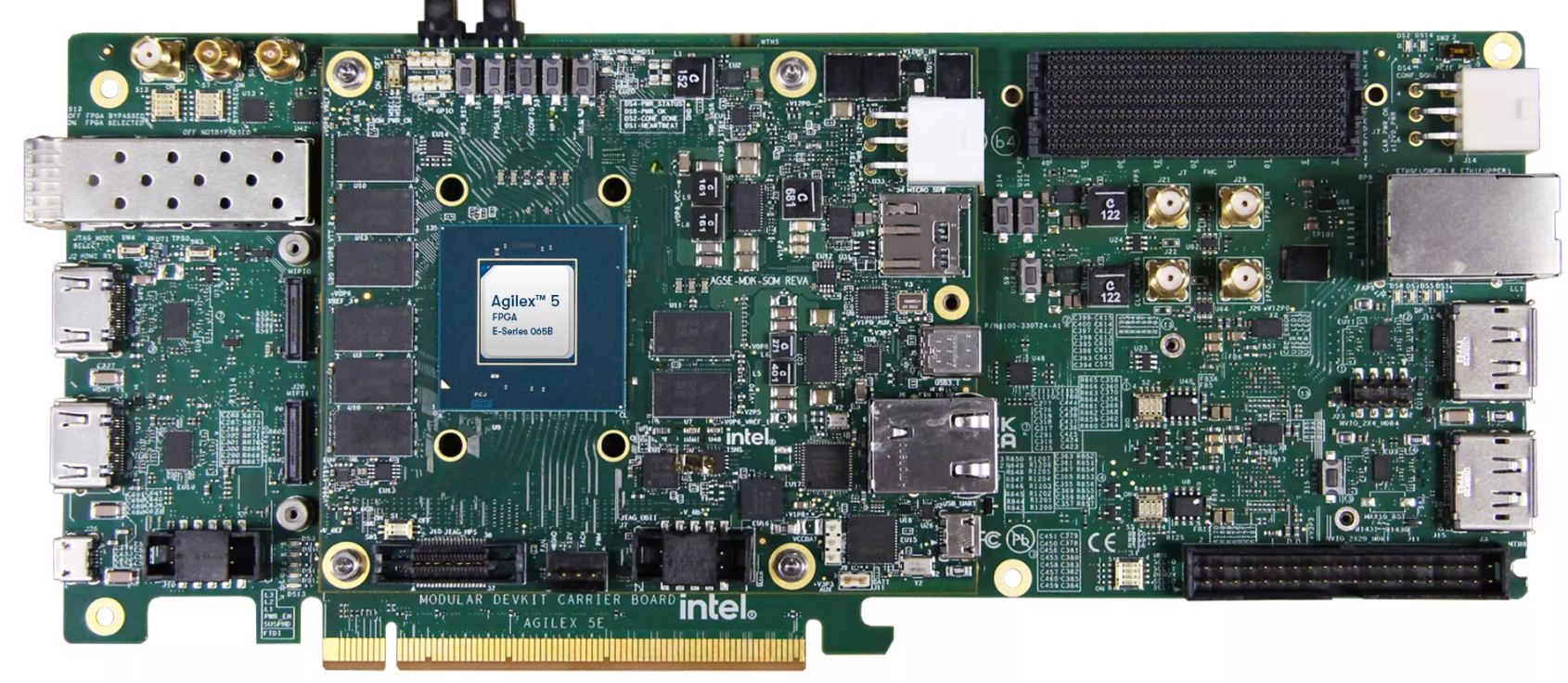
Agilex™ 5 FPGA E-Series 065B Modular Development Kit.
Sources
The sources below are recommended for Quartus® builds. Users are advised to utilize the updated versions of these building blocks in production environments. Please note that this is a sample design and is not suitable for production or final deployment.
Example Design Source Repositories.
| Component | Location | Branch |
|---|---|---|
| Assets Release Tag | https://github.com/altera-fpga/agilex-ed-robotics/releases/tag/rel-vision-doc-26.1 | rel-vision-doc-26.1 |
| Altera Robotics | https://github.com/altera-fpga/agilex-ed-robotics | rel/26.1 |
| Modular Design Toolkit | https://github.com/altera-fpga/modular-design-toolkit | rel/26.1 |
| Altera ROS2 | https://github.com/altera-fpga/altera-ros2 | main |
| Drive-On-Chip (reference) | https://github.com/altera-fpga/agilex-ed-drive-on-chip | rel/26.1 |
| Linux (Yocto/KAS) | https://github.com/altera-fpga/agilex-ed-robotics/tree/rel/26.1/sw | rel/26.1 |
| Linux kernel | https://github.com/altera-fpga/linux-socfpga | socfpga-6.18.2-lts |
| Arm Trusted Firmware | https://github.com/altera-fpga/arm-trusted-firmware | socfpga_v2.14.0 |
| U-Boot | https://github.com/altera-fpga/u-boot-socfpga | socfpga_v2026.01 |
| Yocto Project: poky | https://git.yoctoproject.org/poky | wrynose |
Getting Started
Follow these steps to run the example on the Agilex™ 5 E-Series 065B Modular Development Kit.
Download the pre-built binaries
| Boot Source | Link |
|---|---|
| SD Card Image | wic.gz, wic.bmap |
| QSPI | top.hps.jic |
Setting up your development board
- Configure the board switches: The following provides the default configuration for all the switches in the board.
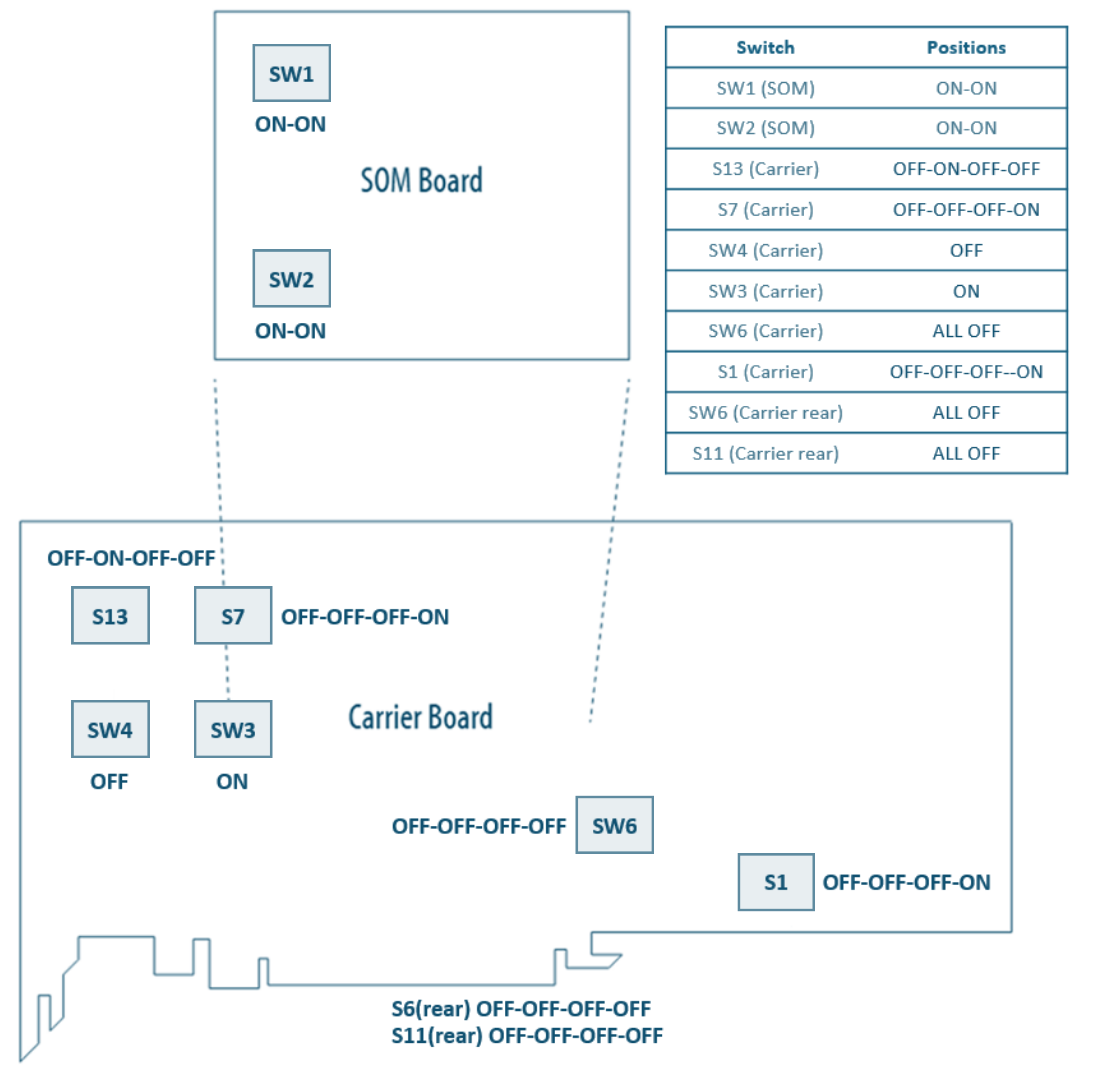
Development Board switch position
Main configurations used in this example design
JTAG: SOM SW4[2:1]=OFF:OFF
ASx4 (QSPI): SOM SW4[2:1]=ON:ON
ESD
Handle ESD-sensitive equipment (boards, microSD cards, camera sensors, etc.) only when properly grounded at an ESD-safe workstation.
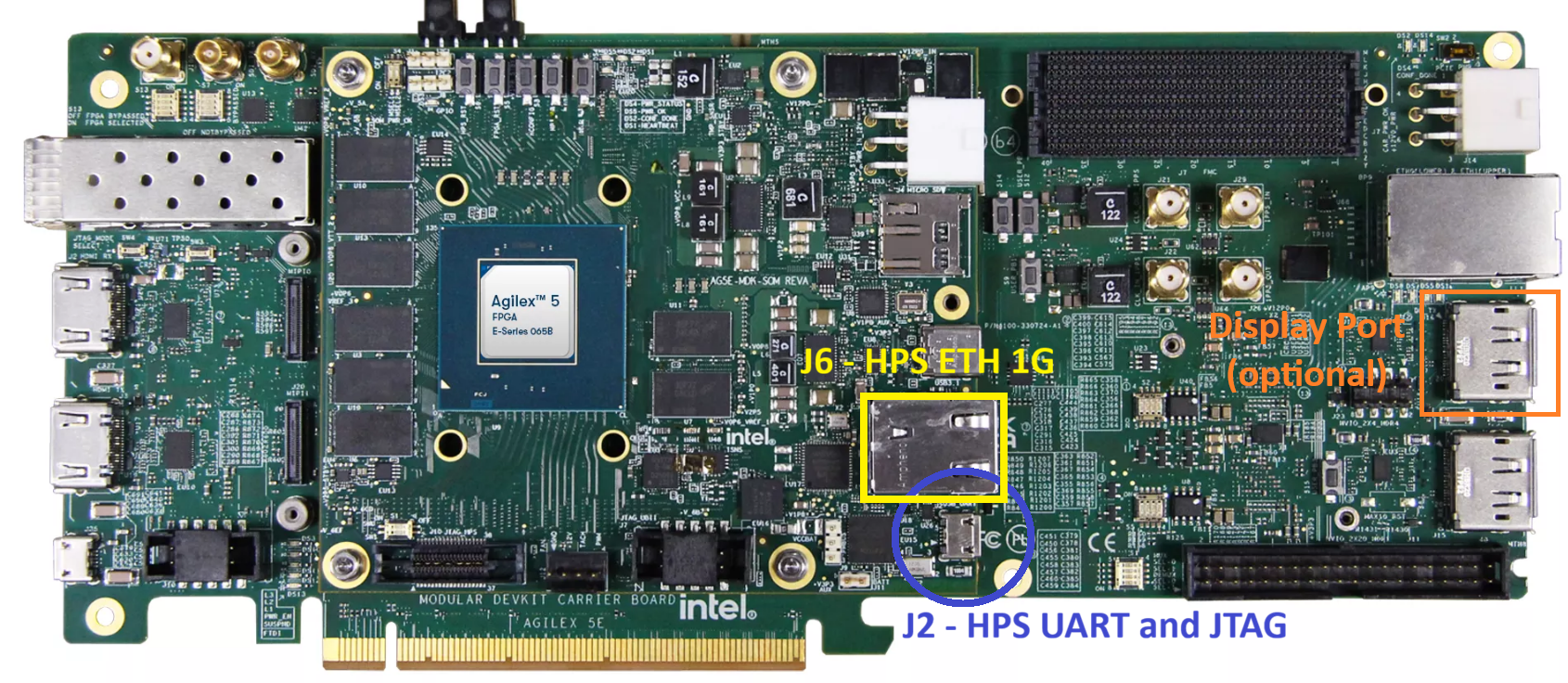
- (Optional) Connect a DisplayPort or HDMI display to the development kit when validating the ISP and display pipeline (
J16). - Connect micro USB cable from bottom right of the SOM board to PC
(
J2, HPS_UART). This will be used for HPS UART communication and JTAG terminal for FPGA programming. Look at what ports are enumerated on your host computer. Use the new one in the list as the HPS serial port (see figure below). - Connect an ethernet cable to the ethernet port on the SOM board (
J6, ETH 1G HPS) and make sure your device is in the same network as your intended host device. After Linux boots, check the IP address of theend2ethernet interface using theip addrcommand.
USB connections to the board
SD Card Image Flashing
- Download SD card image (
.wicor.wic.gz) from the prebuilt binary links above. - Write the
.wicor.wic.gzSD card image to the micro SD card using one of the options below. - Turn off the board and insert the SD card in the micro SD card slot on the SOM board.
USBImager (Windows, Linux, Mac OS)
- Open USBImager and click the
...button in the top right. - Select the image you downloaded earlier and click
Open. - Next select the device associated with your SD card reader from the drop-down list.
- Click
Writeto start flashing.
bmaptool (Linux)
Note
You will require a .wic.bmap file in addition to the .wic or .wic.gz in order to use bmaptool. If this is not available use USBImager.
On many distributions bmap-tools can be installed using your distros package manager (e.g. sudo apt install bmap-tools).
For more information see the Yocto documentation for bmaptool.
First of all determine the device logical name associated with the SD card on your host:
Use bmaptool to copy the image to the SD card. Make sure the wic image file and bmap file are in the same directory.
For example:
Flash the QSPI
- Download the
.jicimage from the prebuilt binary links above. - Power down the board.
- Set MSEL dipswitch S1 on SOM to JTAG: OFF-OFF
- Power up the board.
- Program the QSPI with the following command. See: quartus_pgm command
-
(Optional) Use the Quartus® Programmer GUI
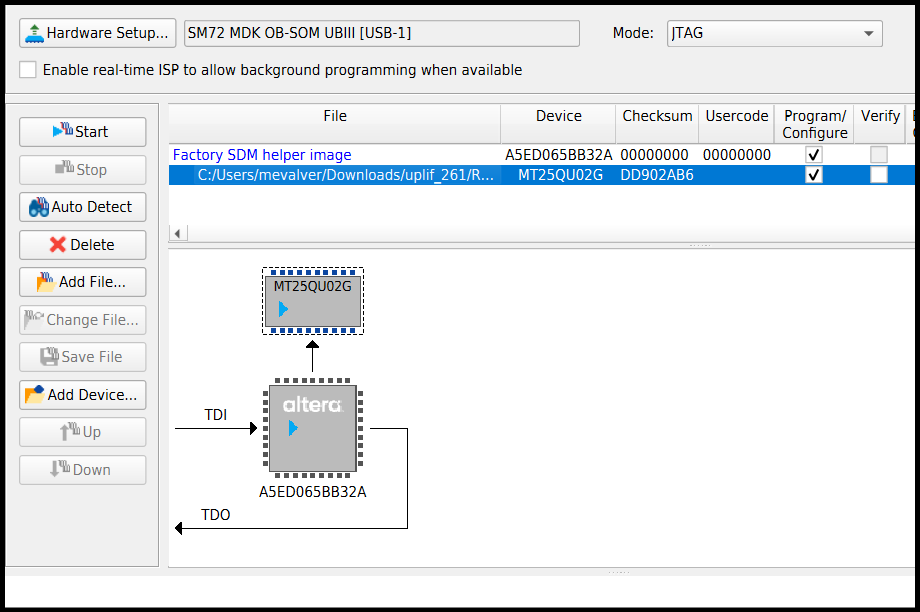
- Launch the Quartus® Programmer and Configure the "Hardware Setup..." and select the SOM device (SM27 MDK OB-SOM UBIII)
- Click "Auto Detect", select the device
A5ED065BB32Aand press "Change File.."
- Select the
.jicfile you downloaded earlier. TheMT25QU02Gdevice should now show. Select the "Program/Configure" box, and press "Start". Wait until completed (It could take several minutes).
- Power down the board. Set MSEL dip switch S1 on SOM to ASX4 (QSPI): ON-ON
Bring up the board
- Power up the board and set up the serial terminal (minicom, PuTTY, etc.):
- Select the correct
COMxport from the HPS serial UART. - Serial Port configuration:
- Baud rate: 115200, Data bits: 8, Stop bits: 1, CRC: disabled, Hardware flow control: disabled
- Connect your terminal emulator.
- Select the correct
- Wait for Linux to boot and login with
rootuser.
Pull the Altera® ROS2 Docker Image
Run the following on the development kit HPS to pull the latest Altera® ROS2 Docker image.
Note
An internet connection is required to run the following commands.
The Docker image alterafpga/ros2 should now be listed when you run the following command.
The Docker image includes the Altera ROS 2 packages and examples pre-installed and ready to use.
Run the ROS Pick & Place With Vision Example Client
To exercise the FPGA example design we provide a ROS 2 based pick & place with vision example application in the Altera ROS 2 repository. The example is a C++ application which detects ArUco markers in a given camera stream and transforms the pose of detected markers to the end effector of a UFACTORY Lite 6 robot arm. It uses the MoveIt framework to manage the planning scene, path planning and trajectory execution.
The example application can either control a physical UFACTORY Lite 6 robot arm or a simulated robot arm driven by Drive-on-Chip simulated motors in the FPGA. Similarly, it can work with a real camera stream or the test pattern stream with generated ArUco markers. The video stream from the FPGA video pipeline is handled the same in software regardless of the source.
Here we will run the fully simulated variant which requires no additional hardware.
On the HPS, start a container using the image pulled in the previous section:
docker run -it --rm --network host --device /dev/uio0 --device /dev/uio1 --device /dev/uio2 --device /dev/uio3 --device /dev/uio4 --device /dev/uio5 alterafpga/ros2
5 Userpace I/O (UIO) devices are passed through to the container:
- 0-1 are Video Frame Writer devices
- 2 is the ArUco marker generator controller interface
- 3-5 are Drive-on-Chip motor control interfaces
Note that the container is run with host networking passthrough mode so the board can communicate to other machines on the same LAN.
Next launch the example application:
Upon successful initialization, you should see planning and execution activity similar to:
[ros2_control_node] [INFO] [lite6_traj_controller]: Received new action goal
[ros2_control_node] [INFO] [lite6_traj_controller]: Accepted new action goal
[move_group] [INFO] [moveit.simple_controller_manager.follow_joint_trajectory_controller_handle]: lite6_traj_controller started execution
[move_group-2] [INFO] [moveit.simple_controller_manager.follow_joint_trajectory_controller_handle]: Goal request accepted!
ROS Robot Visualizer (RViz)
To visualize what is happening in the example application robotics pipeline on a host PC, run RViz in a container. Rocker is recommended for running graphical applications in a Docker container. The host PC needs to be on the same LAN as the HPS running the ROS example application.
You first need to ensure Docker is installed on your host PC and then follow the Rocker installation instructions before proceeding.
Once you have Rocker installed pull the Altera® ROS2 Docker image.
Note
An internet connection is required to run the following commands.
Next, launch RViz in a Docker container using the following commands:
Note
The command above is for systems with Intel® integrated or discrete GPUs. On systems with an Nvidia® GPU, follow the Rocker Nvidia® steps and add the --nvidia flag.
Once the container starts run the following command to launch RViz:
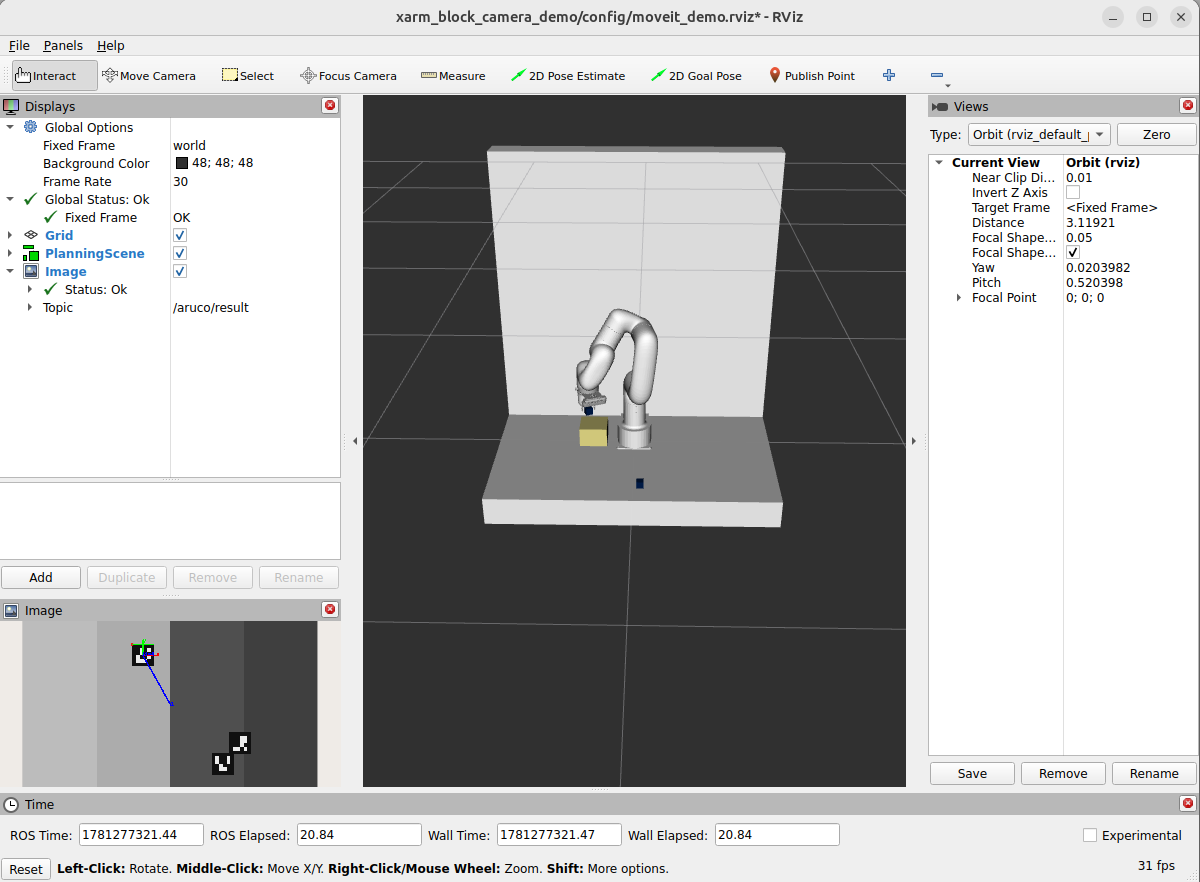
You should see output similar to the screenshot below once the RViz interface loads. The planning scene shows a live view of the robot arm and detected blocks. The image view in the bottom left shows the published camera stream including an overlay of detected ArUco markers.
Recommended User Flows
With the available resources, you can build, compile, modify, and execute this design example. Additionally, there are two extra user flows that you can explore.
- User Flow 1: Getting Started — run with pre-built binaries.
- User Flow 2: Running the example design using the QAR and KAS.
- User Flow 3: Running the example design by creating and building with the Modular Design Toolkit (MDT) and KAS.
More resources.
| Source | Link |
|---|---|
| Pre-created QAR | ROBOTICS_ISP_VISION_DOC.qar |
| JIC / RBF | top.hps.jic, top.core.rbf |
| u-boot-spl-dtb.hex | u-boot-spl-dtb.hex |
Recommended User Flows.
| User Flow | Description | User flow 1 | User flow 2 | User flow 3 |
|---|---|---|---|---|
| Pre-requisites | Software Requirements to run. | |||
| Software Requirements to build. | ||||
| Hardware Requirements. | ||||
| Download the minimum Pre-built Binaries. | ||||
| HW-Compilation | Compile pre-created QAR with Quartus®. | |||
| Generating and Building the NiosV/g BSP for the Drive-On-Chip Application. | ||||
| Creating and Building the Design based on Modular Design Toolkit (MDT). | ||||
Creating the QSPI Flash and SD card configuration bitstreams for the board (JIC/RBF). u-boot-spl-dtb.hex file, which is generated in the step below. |
||||
| SW-Compilation | Create SD card image (.wic) using YOCTO/KAS |
|||
| Programming | Setting Up your Development Board. | |||
| SD Card Image Flashing. | ||||
| Program the QSPI Flash Memory. | ||||
| Testing | Run the example design. |
Example Design Documentation
- Design Example Features.
- FPGA Hardware Functional Description.
- Software Stack Functional Description.
- Acronyms and Terminology.
Related Documentation
Example Designs
- Robotics Camera System Example Design for Agilex™ 5 Devices
- Robot Controller with Vision System Example Design for Agilex™ 5 Devices
- ROS Consolidated Robot Controller Example Design for Agilex™ 5 Devices
- 4Kp60 Multi-Sensor HDR Camera Solution System Example Design for Agilex™ 5 Devices
- 4Kp30 Camera Lite Solution System Example Design for Agilex™ 3 Devices
- Drive-On-Chip with Functional Safety System Example Design for Agilex™ 5 Devices
- Drive-On-Chip with PLC System Example Design for Agilex™ Devices
- Agilex™ 5 FPGA - Drive-On-Chip Design Example
- Altera® Agilex™ 7 FPGA – Drive-On-Chip for Altera® Agilex™ 7 Devices Design Example
- Agilex™ 7 FPGA – Safe Drive-On-Chip Design Example
- Agilex™ 5 E-Series Modular Development Kit GSRD User Guide (26.1)
- Agilex™ 5 E-Series Modular Development Kit GHRD Linux Boot Examples
User Manuals
- Agilex™ 5 FPGA E-Series 065B Modular Development Kit.
- Agilex™ 5 E-Series Modular Development Kit GSRD User Guide (26.1).
- Hard Processor System Technical Reference Manual: Agilex™ 5 SoCs (26.1).
- Video and Vision Processing Suite Altera® FPGA IP User Guide.
- VVP IP Suite.
- Tone Mapping Operator.
- 3D LUT.
- MIPI DPHY IP and MIPI CSI-2 IP.
- Nios® V Processor.
Notices & Disclaimers
Altera® Corporation technologies may require enabled hardware, software or service activation. No product or component can be absolutely secure. Performance varies by use, configuration and other factors. Your costs and results may vary. You may not use or facilitate the use of this document in connection with any infringement or other legal analysis concerning Altera® products described herein. You agree to grant Altera® Corporation a non-exclusive, royalty-free license to any patent claim thereafter drafted which includes subject matter disclosed herein. No license (express or implied, by estoppel or otherwise) to any intellectual property rights is granted by this document, with the sole exception that you may publish an unmodified copy. You may create software implementations based on this document and in compliance with the foregoing that are intended to execute on the Altera® or product(s) referenced in this document. No rights are granted to create modifications or derivatives of this document. The products described may contain design defects or errors known as errata which may cause the product to deviate from published specifications. Current characterized errata are available on request. Altera® disclaims all express and implied warranties, including without limitation, the implied warranties of merchantability, fitness for a particular purpose, and non-infringement, as well as any warranty arising from course of performance, course of dealing, or usage in trade. You are responsible for safety of the overall system, including compliance with applicable safety-related requirements or standards. © Altera® Corporation. Altera®, the Altera logo, and other Altera® marks are trademarks of Altera® Corporation. Other names and brands may be claimed as the property of others.
OpenCL* and the OpenCL* logo are trademarks of Apple Inc. used by permission of the Khronos Group™.
Created: June 25, 2026